> ## Documentation Index
> Fetch the complete documentation index at: https://docs.sumbios.ai/llms.txt
> Use this file to discover all available pages before exploring further.
# Network Map
> Choose how members’ names appear on the Network map.
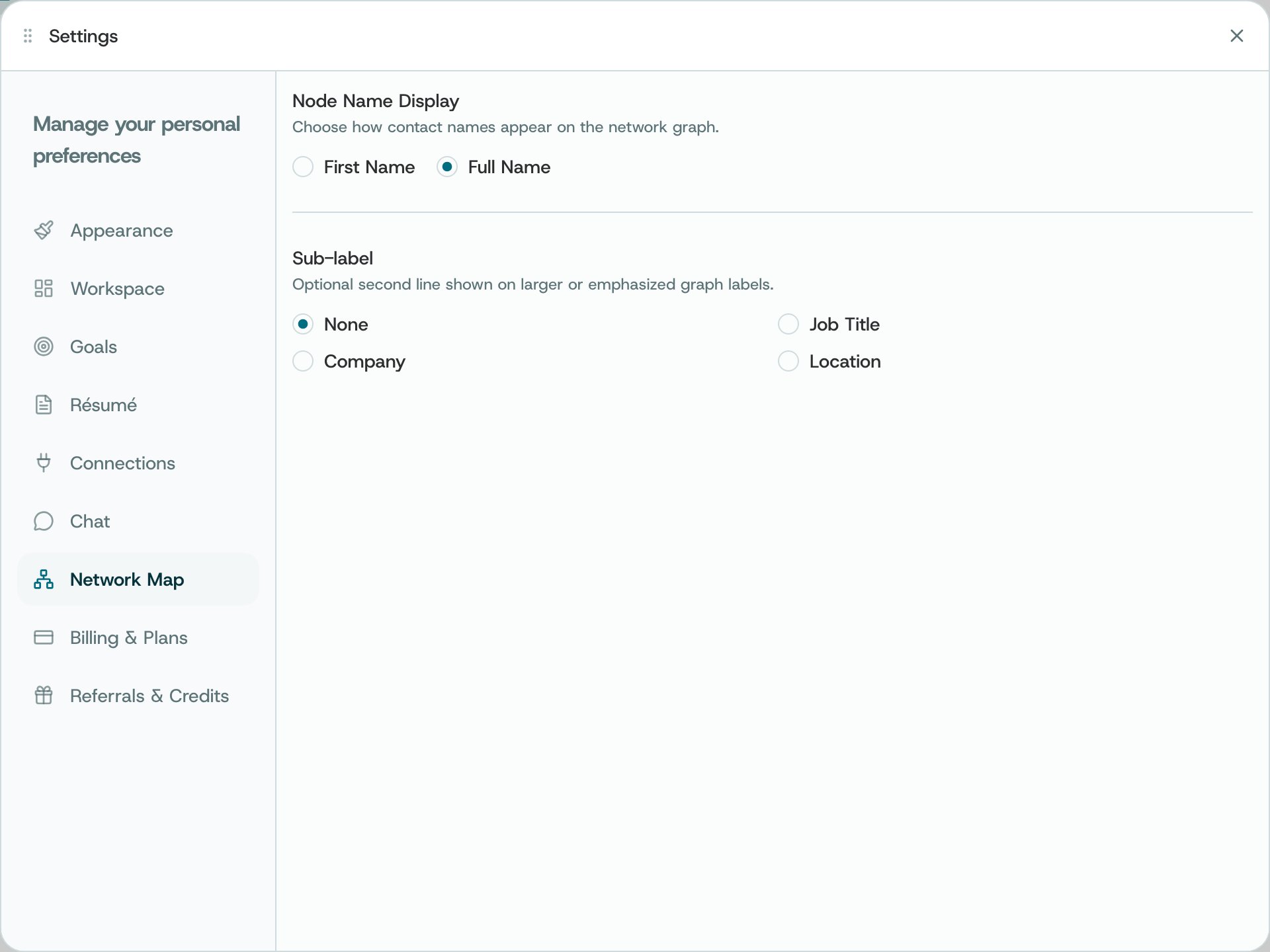
Node Name Display lets you show first or full names. Sub-label adds a second line, such as a job title, company, or location, or leaves it blank.
## Where to find it
Open Settings → Network Map.
 ## What you can do
* Choose whether the map shows a member’s first name or full name.
* Choose the extra detail shown beneath larger or highlighted names, or select None to keep them simple.
## How to use it
* Return to Network to see how the names and labels look.
* Use the Network page’s network choices and view options to change what is shown. These settings only change the labels.
**Availability and privacy.** Map preferences change presentation, not the underlying network data or sharing permissions.
This documentation is built and hosted on [Mintlify](https://mintlify.com), a developer documentation platform.
## What you can do
* Choose whether the map shows a member’s first name or full name.
* Choose the extra detail shown beneath larger or highlighted names, or select None to keep them simple.
## How to use it
* Return to Network to see how the names and labels look.
* Use the Network page’s network choices and view options to change what is shown. These settings only change the labels.
**Availability and privacy.** Map preferences change presentation, not the underlying network data or sharing permissions.
This documentation is built and hosted on [Mintlify](https://mintlify.com), a developer documentation platform.